
Guide · Warranty
How to catch warranty mistakes before the RO closes
The short answer
Yes, it can be done. Much of a dealership’s warranty review happens after the repair order closes, when a warranty administrator or an outside claim-review service checks the claim before it goes to the manufacturer. By then the car is gone. To catch a mistake while the car, the customer and the technician are still in the building, the check has to happen on the open RO, where the advisor is working.
DealerNavi makes that check. It runs in Chrome on the DMS and scheduling screens your team already uses, and flags missing claim details, pay-type problems, operation codes and manufacturer requirements while there is still time to fix them.
Why it has to happen before the RO closes
The open RO is the only place a warranty mistake can be fixed. The advisor can walk back to the technician, ask the customer a question or fix a line before anything prints.
Once the RO is closed and the car is gone, it is done. There is no reopening the RO to make the fix, so the claim goes out the way it was written. A claim that goes out incomplete can come back denied. A claim that is paid with a gap in it can come back months later as an audit chargeback. A rental billed to the wrong pay type is the same: once the RO closes, the store absorbs it.
Editing the claim later does not fix the RO either. A warranty administrator can change what is submitted to the manufacturer, but the RO stays the way it closed. In a warranty audit, the manufacturer inspects the ROs, on paper or scanned, and charges back every claim that does not match what was submitted, along with a long list of other reasons. A single audit can cost a dealership anywhere from $10,000 to hundreds of thousands of dollars. A claim is only as good as the RO behind it.
The pre-close warranty checklist
These are the gaps that turn a good repair into a denied or charged-back claim. Each one can only be fixed while the RO is open.
1. The claim story: complaint, cause and correction
The cause should say why the part failed, not only what was replaced. The correction should say what the technician did to fix it. A cause that only names the part, or a correction that was never written, is one of the easiest ways to lose a claim.
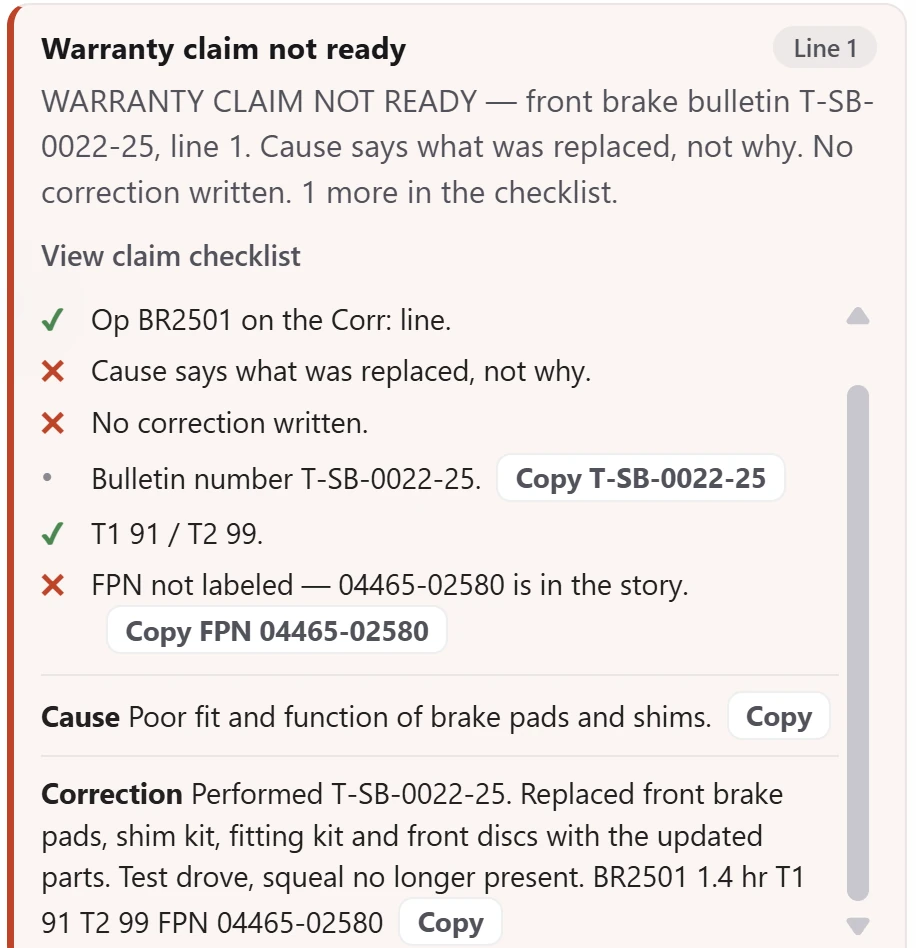
DealerNavi flags a missing cause or correction and offers text ready to copy.
2. The bulletin number, and whether the bulletin applies
When a repair follows a service bulletin, the claim needs the bulletin number. The vehicle also has to fall inside the bulletin’s scope: the models, years and conditions it covers. Citing a bulletin that does not apply is as risky as leaving it off.
DealerNavi flags a missing bulletin number and asks the employee to confirm the bulletin’s scope before citing it.
3. Operation codes on every warranty and campaign line
Each warranty or campaign correction needs the right operation code, including the right variant. A campaign that is on the line without its operation code in the correction is an easy miss at a busy desk.
DealerNavi flags a missing operation code and asks the employee to verify an operation-code variant.
4. Coverage and eligibility
Before work is written as warranty or campaign, check the coverage limits for time and mileage, the model and year, and any qualifying condition the manufacturer requires. Catching this at booking keeps the customer from hearing about it at the counter.
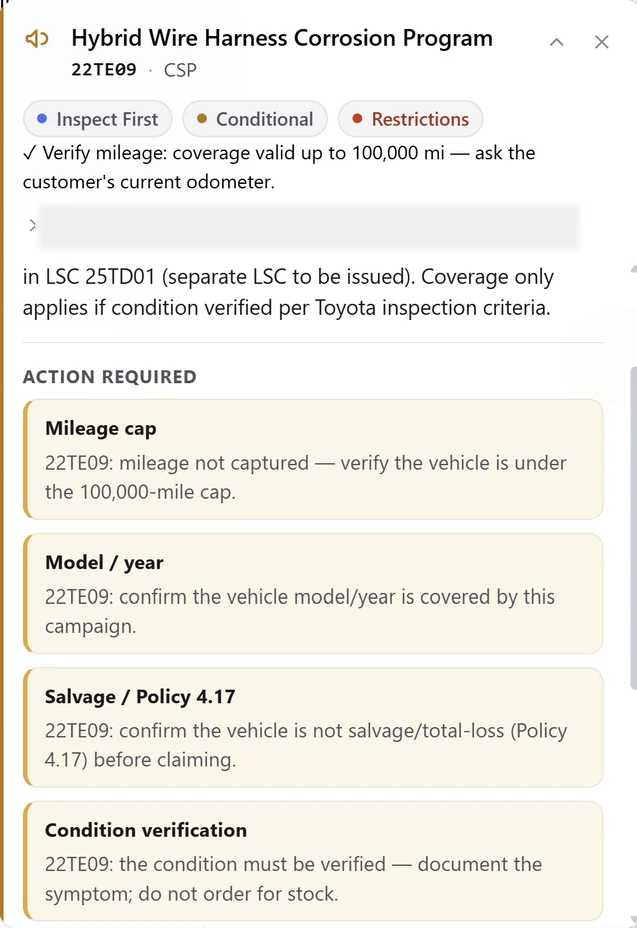
DealerNavi shows mileage, model, year and qualifying-condition prompts on the scheduling screen while the appointment is booked.
5. Pay types and rental
Check that every line carries the right pay type: warranty, customer pay, prepaid maintenance or service contract. Rental is the classic miss. A rental left on customer pay for a warranty repair, or a rental without its agreement number, is money the store can end up absorbing.
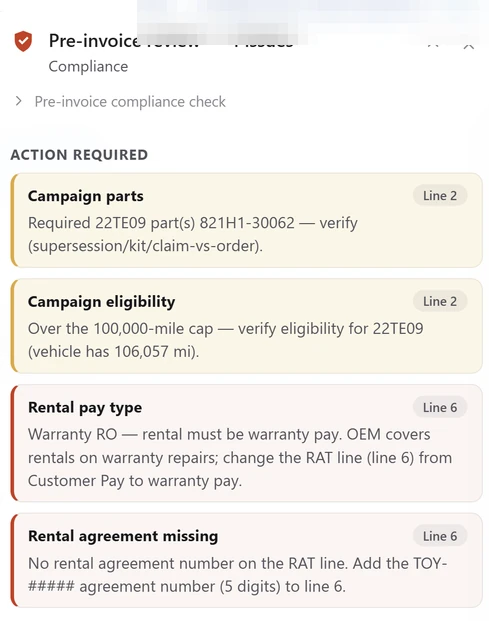
DealerNavi flags the rental pay type and a missing agreement number on the open RO.
6. Parts on the claim
Check that campaign parts sit on the campaign line, that the part fits the vehicle, and that no part is charged on a line that should not carry parts.
DealerNavi’s wrong-part warning tells the employee what to remove and what to verify, and flags a part on a no-parts line.
7. Details the replacement needs
Some repairs need extra details on the claim. A replaced battery, for example, can need the original install information and the old battery’s part number. These are easy to capture while the old part is still on the bench, and hard to find later.
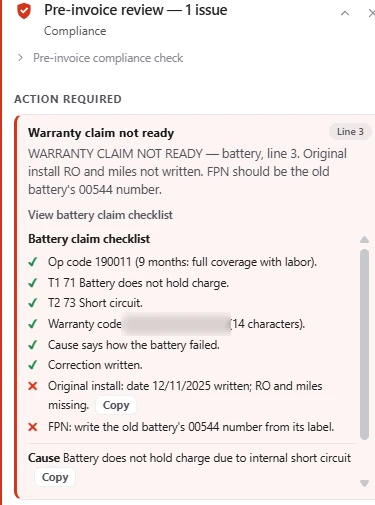
DealerNavi’s warranty checklist shows which details are complete and which are still missing.
8. Repeat repairs
When the same warranty repair comes through again and again, write it the same complete way every time. A template for the cause and correction keeps every advisor’s write-up as strong as your best advisor’s.
DealerNavi lets you build reusable warranty repair templates for work your team sees repeatedly.
9. Factory prepaid maintenance
Not every factory prepaid maintenance visit is just an oil change. Check the interval and what the manufacturer requires at that mileage before the RO is written, so the work and the claim match.
DealerNavi checks whether factory prepaid maintenance requires more than an oil change.
No checklist or tool can guarantee a claim is paid; the manufacturer reviews every claim. Catching these gaps before the RO closes can help reduce avoidable claim denials and later audit chargebacks.
Three checkpoints before the car leaves
- At booking. Confirm eligibility, campaigns and parts, and set the customer’s expectations for time and transportation.
- At write-up. Confirm pay types, rental, operation codes and the bulletin before the technician starts.
- Before the RO closes. Read the claim story, confirm the parts and the replacement details, and make sure the claim is complete.
Which kinds of tools help, and when they check
Dealerships use several kinds of tools to protect warranty revenue. The biggest difference between them is when they look at the repair order.
| Kind of tool | When it checks | Who acts on it | What it focuses on |
|---|---|---|---|
| Warranty administration and claim-review services | After the RO closes, before the claim is submitted | A warranty administrator or an outside reviewer | Claim exceptions and missing claim data |
| Document scanning and audit tools | After the RO closes | Office and warranty staff | Missing documents and audit readiness |
| Digital write-up and inspection platforms | At check-in and during the inspection | Advisors and technicians | Required check-in steps, inspection photos and notes |
| Guidance on the open RO, such as DealerNavi | From booking through write-up, warranty preparation and the final invoice | BDC and advisors, with reports for the service manager | Manufacturer requirements, missing claim details, pay types, operation codes and parts |
Many stores use more than one. A pre-close check works alongside the warranty office: it hands them a cleaner RO.
How DealerNavi checks the RO
DealerNavi runs in Chrome on the screens your team already uses. Today that is DealerTrack and the scheduling screen. When something on the appointment or the repair order needs attention, a card appears beside the work with what to check and, where it can, text ready to copy.
Service managers can open the corrections report to see which issues the team addressed and the ROs behind them, and use the coaching report and weekly trends to decide where to follow up.
Every dealership service department works a little differently. DealerNavi is built to adapt quickly, with guidance and features shaped around your team’s workflow and the areas you want to improve.
Get in touch See the warranty examples
Questions service managers ask
Is there software that checks repair orders for warranty mistakes before the RO closes?
Yes. DealerNavi checks the appointment and the open repair order on the screens your advisors already use, and flags missing claim details, pay-type problems, operation codes and manufacturer requirements while the car is still in the shop. Warranty administration and claim-review services usually check later, after the RO closes and before the claim is submitted.
What warranty mistakes can be caught before the RO closes?
An incomplete cause or correction, a missing or out-of-scope bulletin, a missing operation code, coverage and eligibility limits, the wrong pay type on a line or a rental, parts on the wrong line, missing replacement details such as an old part number, and factory prepaid maintenance requirements.
Which DMS does DealerNavi work with?
DealerNavi runs today on DealerTrack, in Chrome. If your store uses a different DMS, get in touch and tell us which screens your team works in.
Does DealerNavi replace the warranty administrator?
DealerNavi works alongside your warranty administrator. Advisors fix gaps while the RO is open, so claims reach the warranty office more complete, and the service manager can see which issues keep coming back.
How does the team get set up?
Install the Chrome extension on the advisor and BDC computers, then enroll each desk with a one-time store code. Managers sign in from a browser to open the reports.